
Program
OwOCR
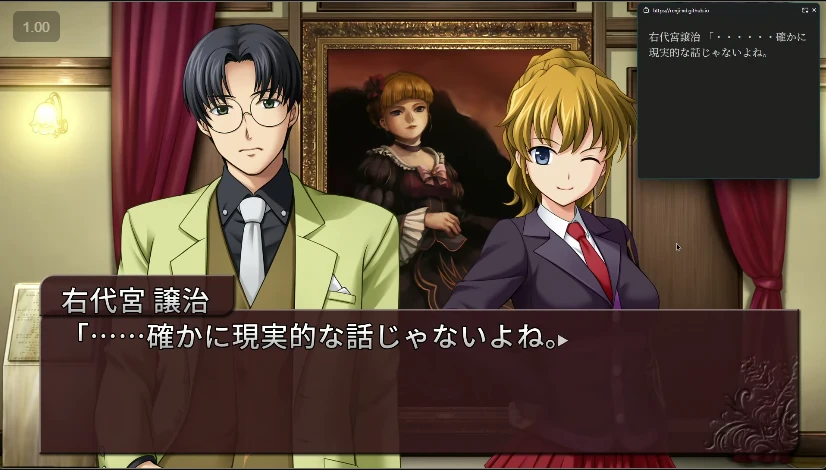
OwOCR is a command-line text recognition tool that continuously scans for images and performs OCR (Optical Character Recognition) on them. Its main focus is Japanese, but it works for many other languages.
- Program
Shared by 天 Staff
Published ·Updated
Details
Main features
- Multiple input sources: clipboard, folders, websockets, unix domain socket, and screen capture
- Multiple output destinations: clipboard, text files, and websockets
- Integrates well with Windows, macOS and Linux, supporting operating system features like notifications and a tray icon
- Capture from specific screen areas, windows, of areas within windows (window capture is only supported on Windows/macOS/Wayland). This also tries to capture entire sentences and filter all repetitions. If you use an online engine like Lens I recommend setting a secondary local engine (OneOCR on Windows, Apple Live Text on macOS and meikiocr on Linux). With this "two pass" system only the changed areas are sent to the online service, allowing for both speed and accuracy
- Control from the tray icon: with a left click you can pause/unpause on Windows, from the right click menu (left click on macOS/Linux) you can change the engine, pause/unpause, change the screen capture area selection, take a screenshot of the selected screen/window, and launch the configuration
- Control from the terminal window: pause/unpause with p or terminate with t/q, switch between engines with s or the engine-specific keys (from the engine list below)
- Control from anywhere through keyboard shortcuts: you can set hotkeys for pausing, switching engines, taking a screenshot of the selected screen/window and changing the screen capture area selection
- Read from a unix domain socket /tmp/owocr.sock on macOS/Linux
- Furigana filter, works by default with Japanese text (both vertical and horizontal)
Configuration
There are many options and customization features. They can be all be accessed with owocr_config, but if you prefer they can also be changed through manual command-line arguments, or by editing the configuration file. You can change the OCR engines, hotkeys, screen capture settings, notifications, add a tray icon and much more.
- All manual command-line options and their descriptions can be viewed with: owocr -h
- The configuration file is located at ~/.config/owocr_config.ini on Linux/macOS, or C:\Users\yourusername\.config\owocr_config.ini on Windows
- A sample config file is available at: owocr_config.ini
Setup
Installation
OwOCR has been tested on Python 3.11, 3.12 and 3.13. It can be installed with pip install owocr after you install Python. You also need to have one or more OCR engines, check the list below for instructions. I recommend installing at least Google Lens on any operating system, and OneOCR if you are on Windows. Bing is pre-installed, Apple Vision and Live Text come pre-installed on macOS.
Basic usage
> owocr
This default behavior monitors the clipboard for images and outputs recognized text back to the clipboard.
> owocr_config
This opens the interface where you can change all the options (it can also be opened from the tray icon).